
How to Use Parental Control Apps with Your Child Correctly
In today’s digital-first world, children spend more time than ever on phones, tablets, and computers. While these devices offer education, entertainment, and communication opportunities, they also introduce risks—from inappropriate content to excessive screen time.
This is where a parental control app comes in. When used correctly, these tools help families create safer online environments, encourage balanced device habits, and maintain trust between parents and children.
This guide explores best practices, setup tips for Android and iOS, and tools like Number Tracker to help parents manage screen time, protect children, and stay connected responsibly.
Understanding Parental Control Apps
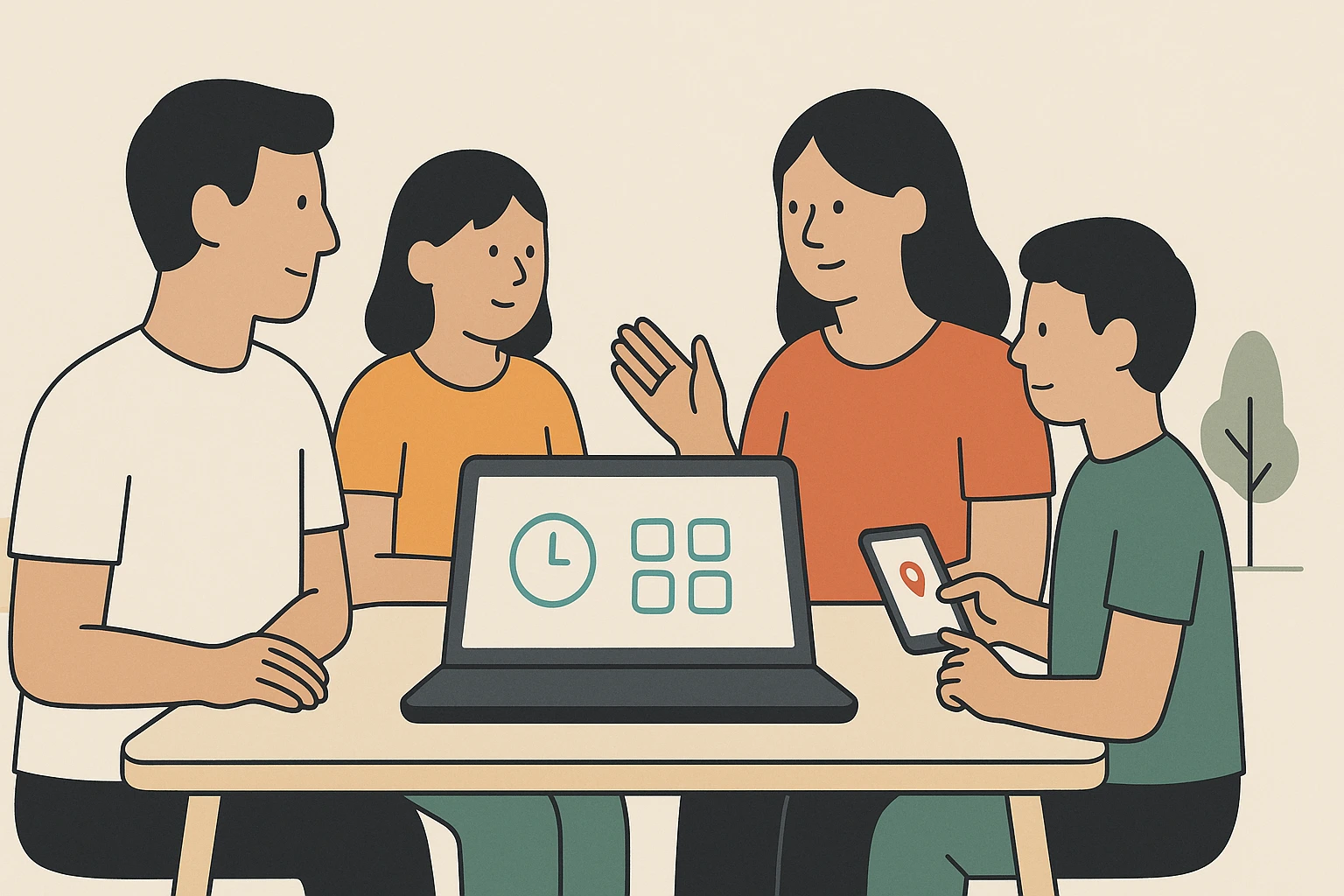
Parental control apps are designed to give parents control and visibility over how children use their devices without turning family life into constant surveillance.
Typical features include:
Content filtering to block inappropriate websites or apps.
Screen time scheduling to limit device use during certain hours.
App blocking for distractions like games or social media during homework time.
Location tracking to ensure children’s safety when they’re outside the home.
Activity reports that summarize how time is spent on devices.
These tools aim to guide, not punish, helping children develop healthy digital habits while protecting their privacy and independence.
Why Using Parental Control Apps Correctly Matters
Experts agree that misusing parental controls can harm trust between parents and children. Overly strict or secretive monitoring risks creating resentment and may lead kids to hide online activities.
Instead, parental control apps work best when parents:
Explain their purpose clearly—safety, balance, and responsibility rather than control.
Involve kids in decisions about screen time limits and online safety rules.
Respect privacy as children grow older, adjusting restrictions as needed.
The goal is to create a healthy digital environment that protects kids while helping them become responsible, independent technology users.
Best Practices for Using Parental Control Apps Safely
Parental control apps are most effective when used as supportive tools, not strict surveillance systems. To strike the right balance between safety and trust, consider these practical guidelines:
Start with a conversation — Explain to your child why parental controls are necessary. Frame the discussion around online safety, balance, and responsibility, not punishment.
Choose age-appropriate settings — Younger children may need stricter filters and screen time limits, while older kids benefit from more flexible rules that respect growing independence.
Customize thoughtfully — Use content filters, app restrictions, and screen time schedules in a way that supports education, rest, and recreation without overstepping privacy.
Use location tracking responsibly — Enable location sharing during travel, school commutes, or emergenciesbut avoid constant real-time monitoring unless necessary for safety.
Review settings regularly — Children’s maturity and needs evolve. Adjust controls over time to build trust and autonomy while maintaining a safe environment.
How to Set Up Parental Controls on Android and iOS
Both Android and iOS offer built-in parental control tools that cover the basics of content filtering, screen time management, and app restrictions.
Android (Google Family Link)
Download Google Family Link on both parent and child devices.
Link the child’s Google Account to the parent’s account within a Family Group.
Set app usage limits, screen time schedules, and content filters from the parent’s device.
Monitor location data and app activity in real time through the app dashboard.
iOS (Apple Screen Time)
Open Settings → Screen Time on the child’s iPhone or iPad.
Set Content & Privacy Restrictions to block inappropriate content and manage allowed apps.
Use Downtime to limit device access during study or bedtime hours.
Review activity reports and adjust restrictions as needed from the parent’s device.
Choosing the Right Third-Party Parental Control App
While built-in tools are a great starting point, some families need advanced features like social media monitoring, detailed location history, or real-time alerts.
Look for apps that:
Balance safety with privacy to avoid over-monitoring.
Support multiple platforms for families using both Android and iOS.
Offer clear reports and easy-to-use dashboards for parents.
Include location sharing and fast alerts for emergencies.
Provide value for cost without overwhelming features or complex setups.
Apps meeting these criteria make it easier for parents to stay informed without micromanaging every digital interaction.
Introducing Number Tracker: A Simple, Secure Way to Stay Connected
When it comes to location safety and family connectivity, Number Tracker stands out as a practical, user-friendly solution. Available on Android and iOS under a freemium model, it gives families access to powerful tools without overwhelming features or steep learning curves.
Here’s how Number Tracker supports families, parents, and even travelers who value safety, privacy, and convenience:
Circles Creation: Organize family members into private groups so locations are shared only with trusted people.
Find Devices: Add favorite devices and use signal strength indicators to quickly locate missing phones or tablets.
Fast Check-In: Kids or family members can instantly mark their location on the map, notifying everyone in the circle.
Places Creation: Set up important locations like home, school, or work with alerts for arrivals and departures (limited in the free version).
Fast Request by Number: Request someone’s location quickly using their phone number.
Friend’s Location Sharing: Track family members, kids, or seniors in real time when safety requires it.
AI Virtual Helper: Get guidance from an intelligent assistant for smooth navigation and location sharing.
Movement History: Review previous routes for travel planning or safety checks without constant real-time tracking.
Why Families Choose Number Tracker
Unlike parental control apps that focus mainly on screen time and content restrictions, Number Tracker complements these tools by adding location-based safety features without being intrusive.
Feature | Built-in Tools | Number Tracker |
Screen Time Management | Yes | No (not its focus) |
Content Filtering | Limited | No (not its focus) |
Real-Time Location Alerts | Basic | Yes — with Fast Check-In & Places |
Movement History | Limited or Absent | Yes — Detailed and Easy to Access |
AI Assistance | No | Yes — Built-In AI Virtual Helper |
Multi-Device Support | Varies | Full Support for Android & iOS |
By combining location safety with ease of use, Number Tracker helps parents stay informed and kids stay safe—without turning technology into a source of conflict.
Building Trust Alongside Safety
Using parental control apps correctly isn’t about restricting kids unnecessarily—it’s about helping them build responsible digital habits while staying safe. When parents combine open communication, age-appropriate rules, and the right tools, they create a positive, balanced digital environment.
Parental control features on Android and iOS handle the basics, while apps like Number Tracker offer additional safety tools for real-time location sharing, movement history, and private family circles. Together, they give parents peace of mind and children the independence to explore safely in today’s connected world.
Start small, keep conversations open, and use technology to protect, educate, and empower your kids—not just to monitor them.